Exporting DCM (DoubleClick) reports to BigQuery
This article shows you the most effective way to export DoubleClick Campaign Manager data into BigQuery, using the "Instant Reporting" feature.
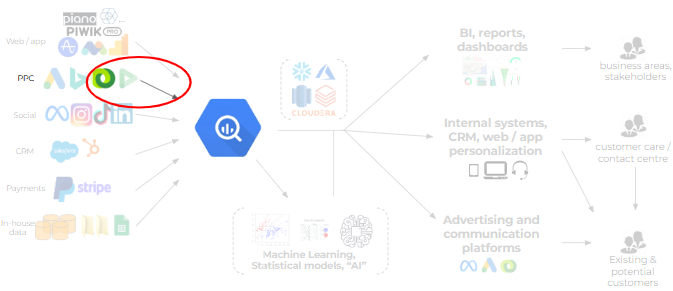
For the majority of businesses, the bulk of advertising happens on Google Ads and Meta (Facebook). Beyond a certain scale though, the organization may want to go wider with the display coverage, and deals are made with other display networks. This is where DoubleClick comes into the picture, allowing centralized management of ads and creatives, as well as comprehensive performance tracking.
Those organizations and professionals who have tasted the power of BigQuery will obviously want to apply their skills on DCM (DoubleClick Campaign Manager) data as well. Let's see how you can avail of this if you're in this situation (or you're just curious and interested).
There are two ways to get DCM data into BigQuery, the "hard" way and the "easy" way. Let's make a note on the "hard" one first.
The Campaign Manager BigQuery Data Transfer
BigQuery has a very neat, ever-growing selection of data sources in its Data Transfer section, many of them provided for free. This is great for us, practitioners, as it allows ingesting data without much coding and maintaining data extraction pipelines (and not so great for ELT providers). There is a data transfer for DCM too, which looks like a handy option to get started with DoubleClick data.
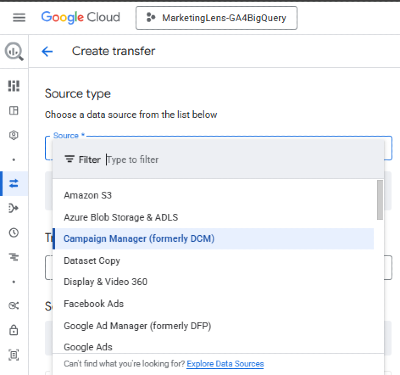
Unfortunately — let's leverage some High English here to stress the point — it ain't. Not only is it tedious to set up (you'll need Google Support via your Google Marketing Platform provider to make files available in Google Cloud Storage), it's also relatively complex to analyze (a sizeable star schema with some intricacies hidden away in the structure), and even when you go through all that, you might find that the data does not actually live up to the promise after all. You can read up about the Data Transfer in the developer page (or here for a better look at the data it provides), or if you've already gone down on this path and you want to make the most of it, feel free to reach out as we do have experience working with this data.
So let's see what the other way is.
Instant Reporting in DoubleClick Campaign Manager
Marketers who deal with DCM are probably very familiar with this feature, whereas it's really not an obvious place for us data folks to look for a BigQuery Export. This is not the granular, pretty much event-level data like what the Data Transfer above provides; instead: you just create the aggregated report you're looking for, and the configuration (after some initial set-up) allows you to throw that data into BigQuery for further processing.
This is not as big a compromise as it may initially sound. Ultimately, from most advertising platforms, we just need the following information:
- campaign dimensions and hierarchy (which campaigns, which ads, perhaps creatives etc)
- date dimension (typically daily break-down of data)
- metrics
- impressions
- clicks
- costs
- perhaps conversions
- etc. – potentially further metrics
- UTM & other infomation (I guess "everything else" falls into this category, delending on your own needs)
The goal is usually to report on the cost and performance of the different campaigns. In the DCM world, the campaign hierarchy may also include the "Site" and "Placement" dimensions, which shows which websites (and which parts) yielded how much visibility and traffic. Marketers already use this feature, just they would often just download the data into a spreadsheet to process it further. In any case, you can identify the necessary fields in the report by talking to the relevant stakeholders or the team that operate campaigns on DCM.
Setting up the BigQuery export: creating an Instant Report
Instead of downloading the data into spreadsheets, we'll set up the export to BigQuery. Here is the process step by step.
When you visit the DoubleClick Campaign Manager portal (and you have access 😃), you'll see the list of campaigns operated in DCM:
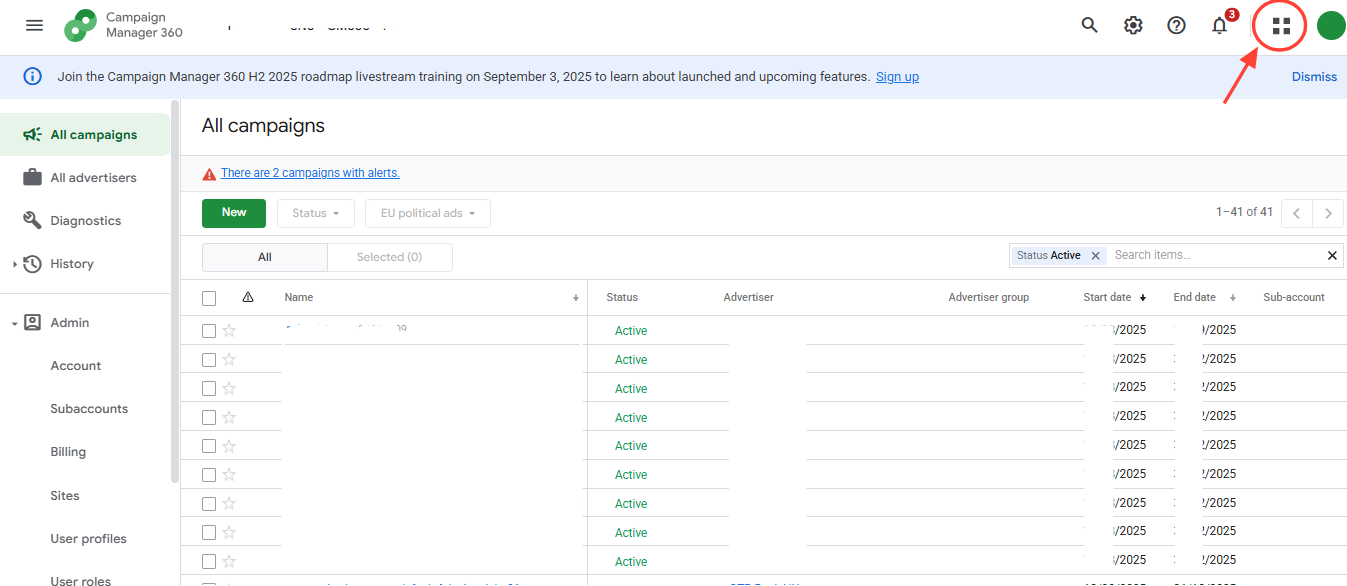
(In the picture, and all other pictures below, I had to scrub out everything that was even remotely client-related, but you can fill in the gaps.)
We're in the "Trafficking" view — somewhat unfortunate wording, but that's what it's called — so first, select the appropriate account by clicking on the top right icon (a full green circle in my case, for whatever reason) and selecting the right one from the list. I won't add a screenshot of that one as I had to scrub literally everything from that image. So the image above shows the next step: click on the "Platform Home" icon (the four squares). Then, select the Reporting and Attribution link.
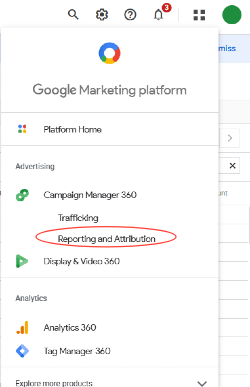
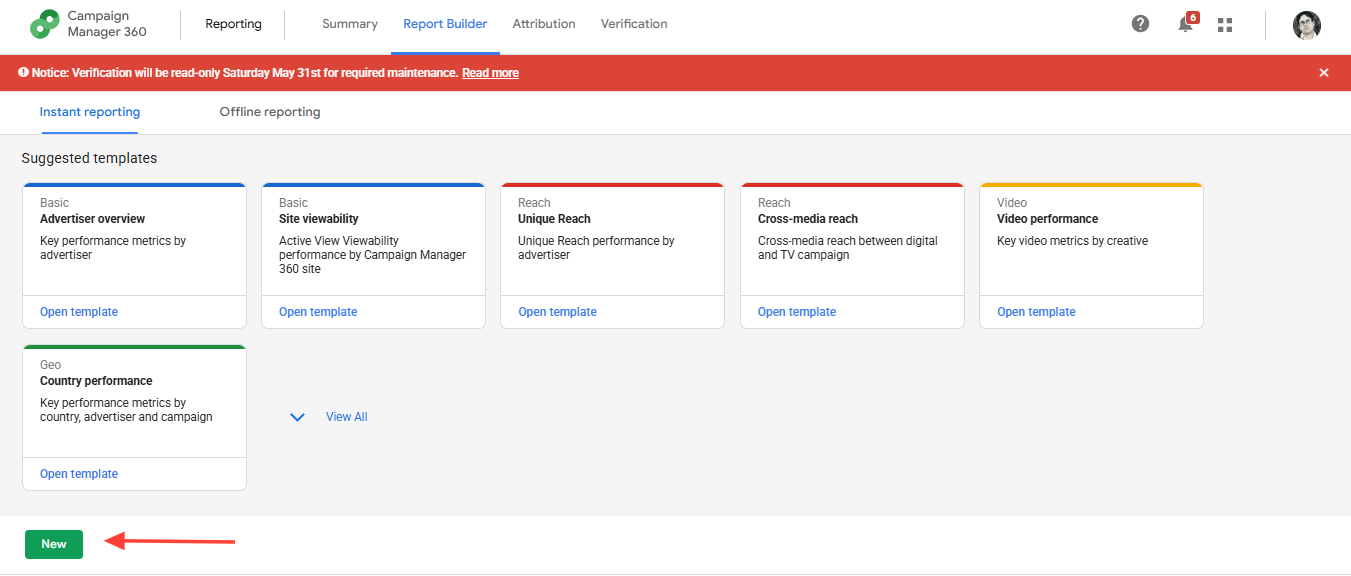
Now we're in the Reporting view (and finally out of "Trafficking" 😃). In the bottom part of this window you might already see some existing reports created by others, but let's assume — which is a very likely scenario — that we need to create a new report. Click the green "New" button. This will open a new, empty "Instant Report".
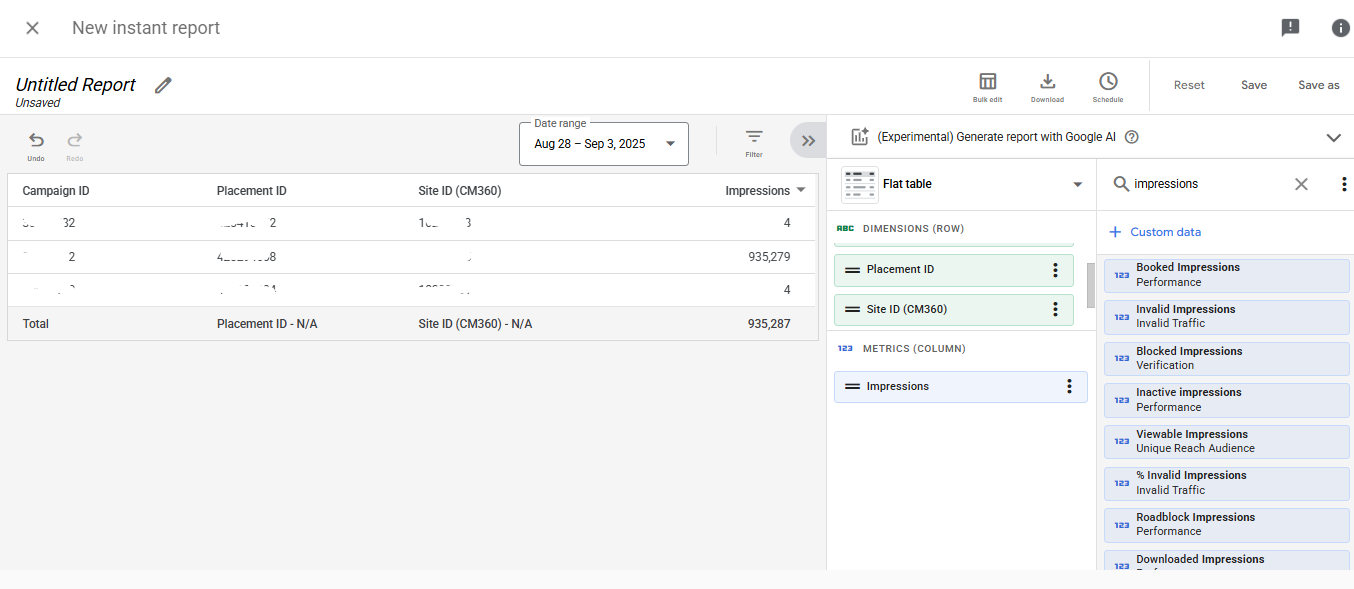
Select your desired dimensions and metrics from the pane on the right. You can use the search functionality to make it easier to find the ones you need.
The following dimensions will probably be useful to include:
- Advertiser ID & Name (especially if it's an agency-owned DCM account; this field will identify the client. You might even want to filter on this.)
- Campaign ID & Name
- Campaign Start & End Dates
- Site ID & Name
- Ad ID & Name
- Placement ID & Name
- Click-through URL
And the following metrics:
- Impressions (both the "normal" ones and
Active View: Viewable Impressions) - Clicks
- Total Conversions
- Booked metrics (impressions, metrics, activities)
- Cost (if DCM provides you this — if the client has a lot of direct deals with publishers, it may not be too well populated)
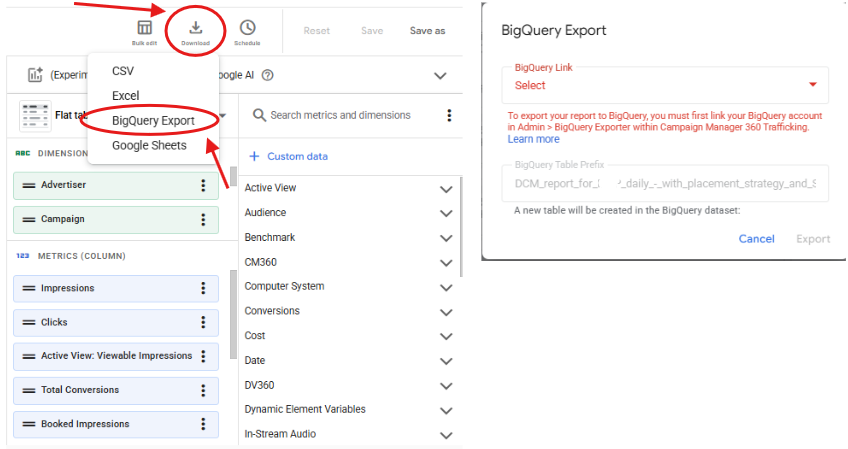
Once the report contains everything you need, give the project a name and click on the Download icon. A small menu comes up, which includes the BigQuery export option. When you choose that though, an error message will come up. So we need to do some config work still.
Setting up the BigQuery Link
Let's go back to the Trafficking view and click "Account" on the left side menu.
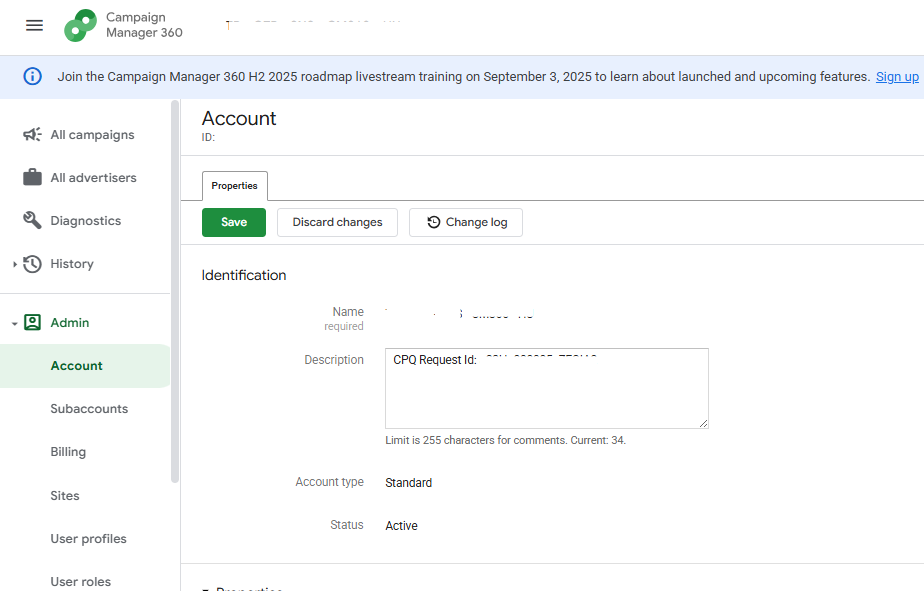
Scroll further down in the right-side dection, until you get to the "BigQuery Exporter" section. It's a single toggle: switch it on. Click the Save button.
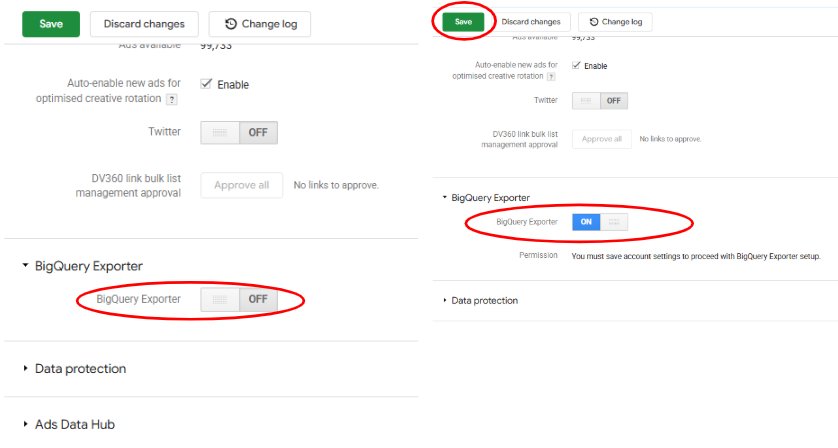
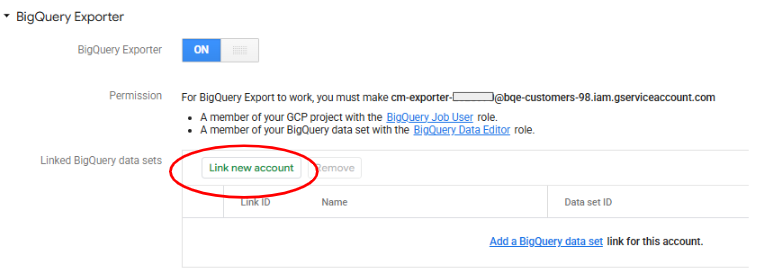
When you go back to the BigQuery exporter, you'll see some instructions on how to proceed: a particular service account needs to be provided with the appropriate privileges (to write the data we're interested in into BigQuery).
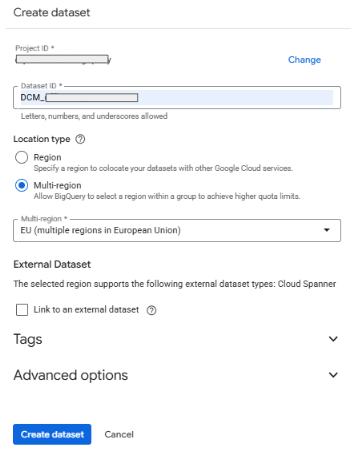
At this point — if you haven't before — create the new dataset in BigQuery Studio.
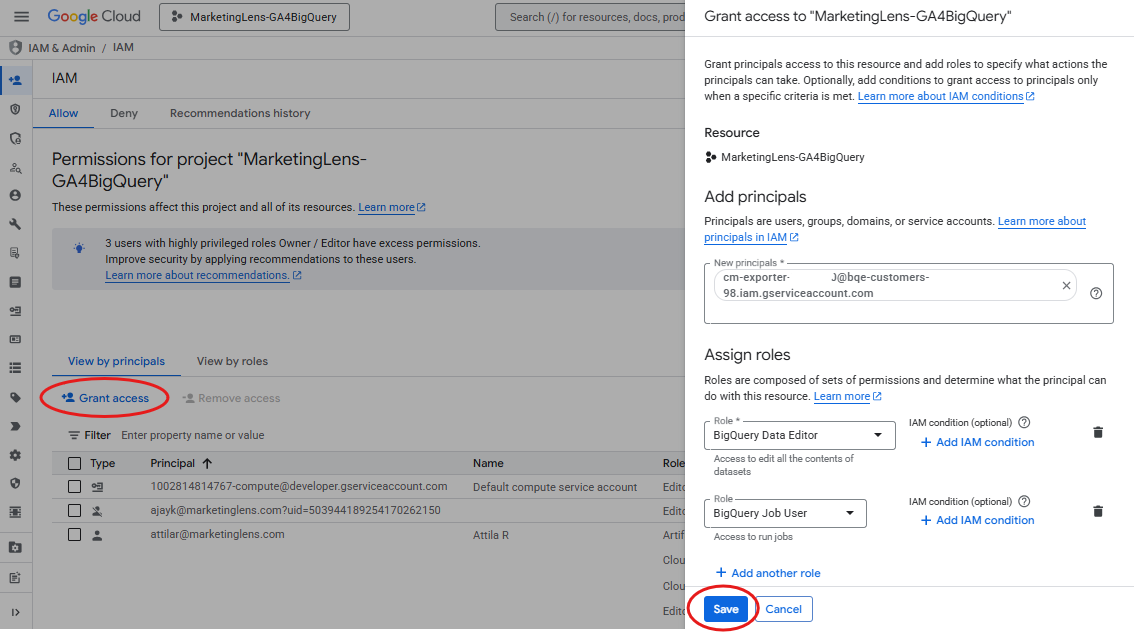
Now, provide the necessary accesses in IAM. In the example below, I've added the Data Editor role on the project level instead of the dataset level. (This is a "fake" screenshot just to illustrate the step — I originally created the export in a client project.) Note that DCM is usually used by larger enterprises, and it may very well be that you'll need to ask the BigQuery admins to perform this step.
Now that we're done, return to click the Link Account button (two screenshots up). It creates a table where you can enter the target dataset details.
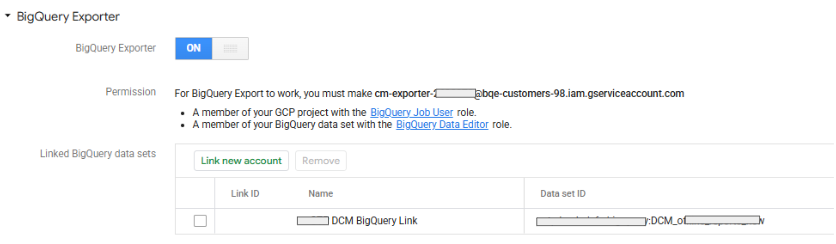
The "Name" will contain the name of the link, which you can identify your target dataset with later when you select the export option in Instant Reports. It can be anything. The Data Set ID is the name of the dataset.
projectname:dataset_name
(You need both, and they're separated with a colon.)
Now, we can return to our report and export it finally. Click the Download button on the Instant Report and select the BigQuery Export option.
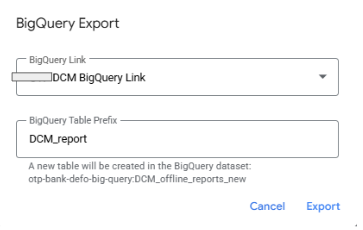
Select the desired BigQuery link (we only set up one here, but you can have more) and set the table prefix. There will be many tables created (more on this later), but this prefix will help keep your sanity, especially if you export multiple reports into the same dataset. If this is the case, make sure the prefix appropriately describes / identifies your report. Click the Export button.
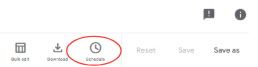
Now, schedule your report using the Schedule button.
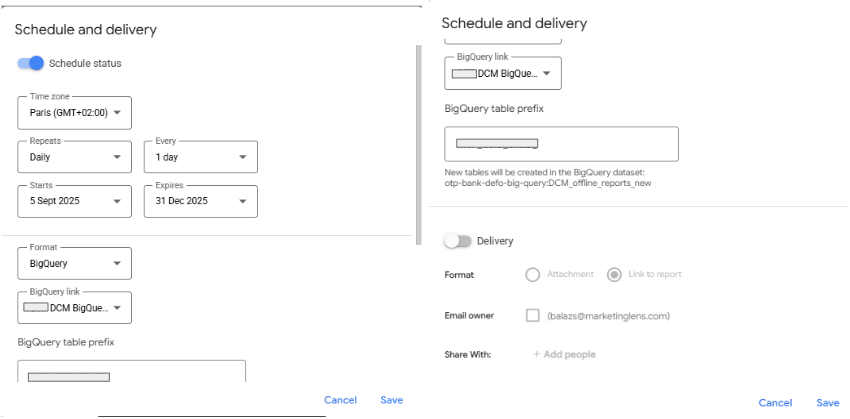
Be very mindful of your timezone and make sure you get it right the first time, so that it loads on the appropriate day (after midnight in your own timezone). Also note that you have to specify an end date for the schedule — this can cause a headache if you forget about it. Although it's easy enough to run a manual backfill (i.e. create a table between manually set dates via an ad-hoc report run), it's best to set a reminder in your and others' calendars.
The result
Now you should have a working DCM export into BigQuery. Typically it runs every day very early in the morning. There is one peculiarity about this export method: it creates a new table every single day. Untangling this will be covered in the next article, available for premium subscribers.
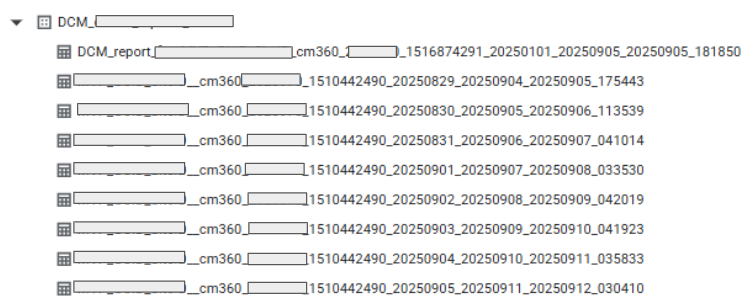
The table names are made up from multiple tags:
- the table prefix you set
- the platform (_cm360 or _dv360)
- advertiser ID
- report ID (you can see this in the Instant Report screen and identify which exact report produces the tables
- start date of report
- end date of report
- date of loading
- a random number
As you can also imagine, over a long period of time, tables will accumulate in high numbers. For this reason, you could potentially set an expiry policy on the dataset, though be careful with that (might be safer to clean up manualy every once in a while).
Now it's your turn!
I hope you've enjoyed this tutorial and feel a bit more confident to dive into DoubleClick Campaign Manager data in BigQuery. Drop a line in the comments if you have any questions, feedback or suggestions related to this article.
