Further smart ways to keep BigQuery costs at bay
This article provides more tricks to prevent cloud bills from building up, when you store a lot of data in BigQuery.
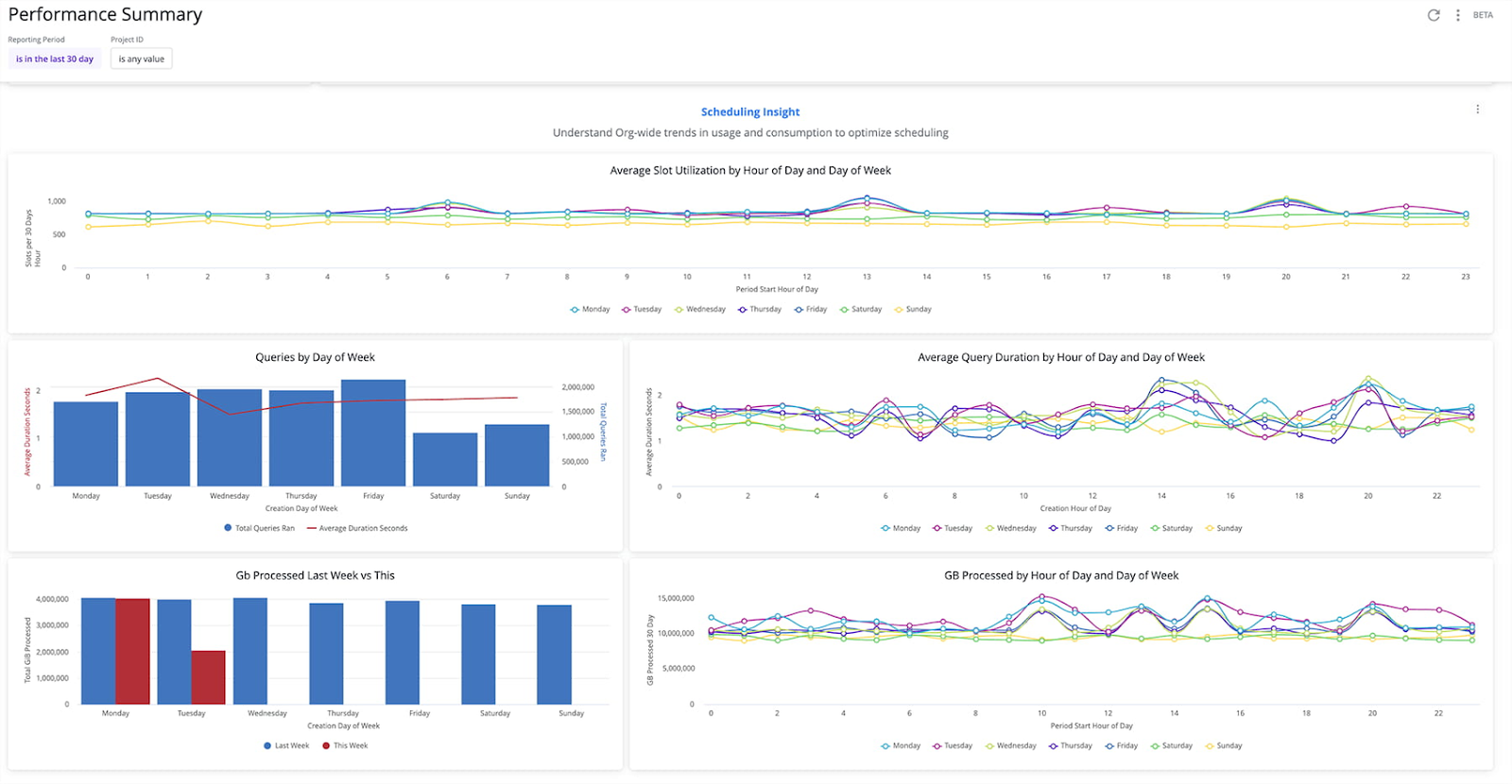
BigQuery, generally speaking, is a very cost-efficient way to store data, even when "large" tables are stored in it in the traditional data warehousing sense (like several million records a day). But there are situations where an organization ingests, produces and processes genuinely "big" data, which can potentially become costly over time (huge GA4 traffic, Merchant Center benchmarking data etc).
The fundamentals are covered in our previous article around minimizing BigQuery cost — covering budget alerts, setting quotas (another article), taking steps to control / reduce query and storage costs, and leveraging the INFORMATION_SCHEMA to identify the largest cost drivers in your project.
I have come across more tips since its publication (plus some new features have come out as well), under the following categories:
- Settings: cost guardrails on a personal level
- Identifying cost drivers (with very comprehensive queries for both storage and query cost)
- Leveraging metadata to reduce cost
- Some smart ways to avoid querying the same thing twice (even if you need it again)
- Being mindful of data types (and a neat trick for building "lightweight" but fully functional identifiers e.g. an
event_id) - A clever way to copy tables without getting charged twice for storage
So here they are, let's dive in.
Adjusting settings
Personal quota limits
The introduction of project level query quotas was a game changer, but not everyone has the necessary access to modify those settings. Now you don't have to worry about incurring massive cost spikes (or getting blamed for it) even if the project admins don't do their homework:
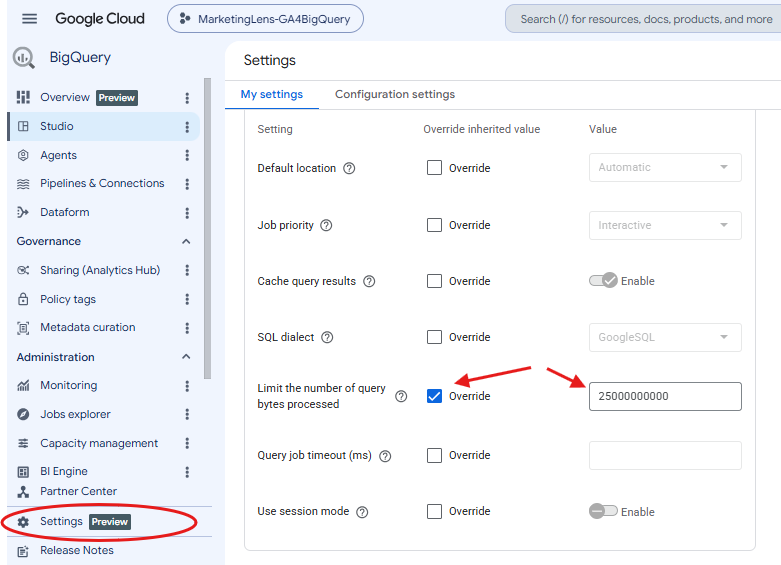
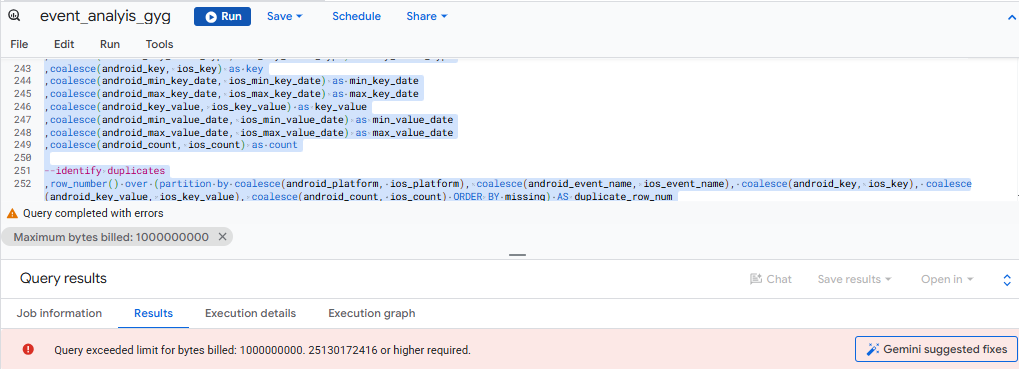
It may not be easy to find it for the first time: BigQuery Studio Settings is in the left side menu (or just use the link). It contains a number of override options. Tick the Override box and provide your desired query limit in bytes. Oddly enough there is no save button; it auto-saves your settings once you leave the input box. But it works:
Identifying the main cost drivers
Getting the costliest query patterns (or users)
Where did all the money go? You can use the below code to get the query patterns (and their executor) and how much cost they drive:
